Choose theme
AI Guide
AI Hardware: what you actually need
The useful starting point is the AI task and where its model runs. That can help you decide whether your existing computer is enough before comparing upgrades.
These are suggestions to adapt to your situation. Check important details against current original sources before acting.
Task
What your AI task asks of your computer
With cloud AI, the model runs on remote computers; with local AI, it runs on your own device. Before considering new parts, you could check which route your task uses. A browser conversation and a downloaded model can ask very different things of the same computer.
Approach
Storage and working memory are different
Storage provides room for model files. RAM is the computer’s working memory, while a separate graphics card has its own memory, called VRAM. Free disk space alone does not tell you whether a local model will fit in memory; the model version and software matter too.
Takeaway
An upgrade needs a reason
If a local model will not load, you could compare its documented requirements with your device before choosing a part. Too little memory, too little storage and unsupported hardware are different problems. A compatible upgrade may help when it addresses the limit you actually found.
Start here
First decide: cloud AI or local AI?
Cloud AI runs the heavy model on someone else's infrastructure. Your device sends the request and displays the result. If that is all you want, upgrading RAM or adding a large graphics card may not improve the service itself.
Local AI downloads a model and runs it on your own computer. That can provide more control over where the model runs, but it also makes memory, storage, heat, power, and software support your responsibility.
Some setups mix both paths. A desktop app may run one model locally while still offering optional online models or services. You could check the selected model and connection path instead of assuming the whole app is local or cloud-based.
Memory
RAM and VRAM do different jobs
System RAM is shared by the operating system, ordinary apps, and local AI software. A dedicated graphics card has its own VRAM; integrated and unified-memory systems may share memory instead.
When local software loads a model, the model and its working data use memory. The exact amount depends on the model, how much it has been compressed, how much text it keeps in working memory, the software engine running it, and the hardware.
RAM: working room shared by the operating system, open applications and local AI software.
Dedicated VRAM: memory on a separate graphics card; its capacity and supported software both matter.
Integrated or unified memory: a different arrangement that can share memory between processing tasks, so a dedicated-card figure may not translate directly.
Context: the text a model keeps available during a conversation also uses working memory. A longer conversation or several open apps can change the available headroom.
Storage
Leaving room for model files
Model files occupy storage even when the model is not running. Several versions can use considerably more space than the one download you first planned for. Working memory is a separate requirement when the model is loaded.
A compressed model can have a smaller download and use less memory for its weights. One common method, quantization, stores those weights at lower precision; that can change the quality of its answers. You could compare the requirements for the actual model version you plan to use.
A common starting point is the actual file or model version you want to try, rather than only its family name. LM Studio documents a memory estimator that takes context length and GPU offload settings into account. An estimate is a planning aid; the selected application and model documentation remain relevant.
Graphics
Buy a GPU for a real workload, not just the AI label
Some local AI software can use a supported GPU. You could check which kinds of graphics hardware the software supports before choosing a card.
If the selected software uses a dedicated GPU, check the app's published VRAM requirements and compare them with the card specifications instead of relying on the gaming name alone.
A graphics-card upgrade can also require a suitable power supply, the right power connectors, enough physical space, adequate cooling, and a compatible motherboard slot. Small desktops, all-in-one computers, and laptops may not support this kind of upgrade at all.
Three paths
Three possible paths before a larger purchase
Hardware advice ages quickly when it starts with a shopping list. A better decision starts with one model, one app, and one real task.
Use what you have: try a small compressed model version, limit how much text it keeps in working memory, close memory-heavy apps, and learn whether local AI is useful to you before spending.
Make a sensible upgrade: add compatible RAM or storage when testing shows a clear limit and the device supports the change.
Build for heavier local AI: choose the model family and how much text it needs to keep in working memory first, then size RAM, VRAM, storage, power, cooling, and budget around that measured need.
Compatibility check
Checking these details before buying anything
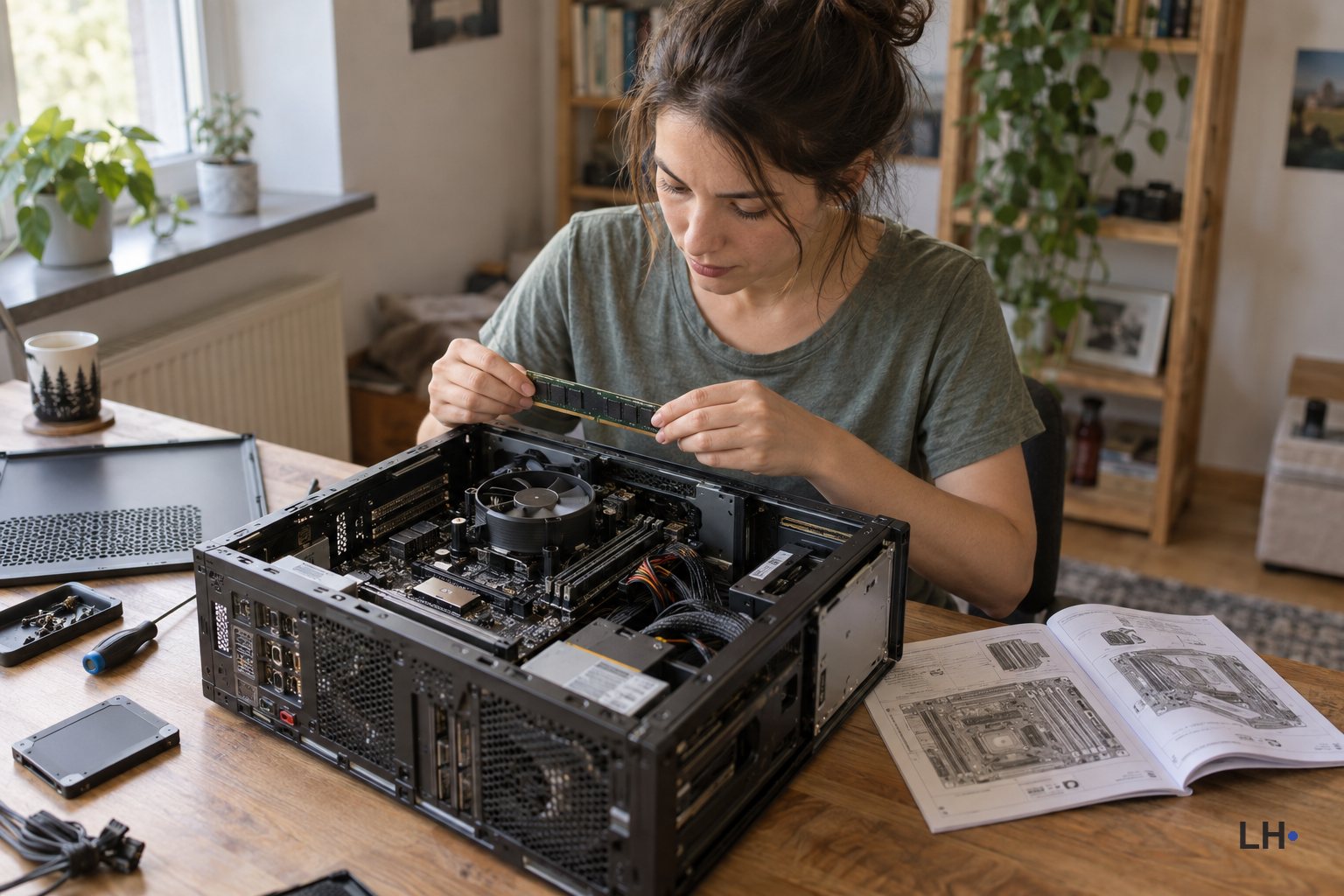
Consider using the computer manufacturer's manual or specification page as the starting point. If the device is custom-built, check the motherboard, case, power supply, and operating-system requirements separately.
The exact computer or motherboard model number.
Whether memory is replaceable, soldered, or already using every slot.
Supported RAM generation, form factor, speed, and maximum capacity.
Supported storage interface and physical size, such as the correct M.2 format.
Available graphics-card slot, case clearance, power capacity, connectors, and cooling.
Operating-system, driver, and local-AI software support for the chosen hardware.
Seller, warranty, return terms, current price, delivery, and regional availability.
Compare parts
Find the part you’re looking for
Ready to compare options? Start with the part that matches your computer and the limit you found above.
Paid links to Amazon. As an Amazon Associate I earn from qualifying purchases.
These links open Amazon searches so you can compare products and sellers. They aren’t a fitted parts list for your PC.
Takeaway
A starting point: the task and the limit you actually found
If your existing browser and connection handle a remote AI service, the computer may already meet that task. If a local model will not load, a memory requirement is a different question from free disk space or a slow reply.
Perhaps try the smallest supported setup first, then compare a compatible upgrade only when it addresses a real limit. The local/private AI collection offers software paths to explore once you understand which setup your device can support.
AI Guide note
How to use this guide
AI Guides are general editorial guidance, not professional advice or guarantees about accuracy, safety, suitability, performance, or outcomes. Tools, terms, prices, features, and laws can change. Check important details against original sources, product terms, reliable references, and qualified help where needed.
Source trail
Check the app and model requirements
For local AI, start with the app you want to use and the model you want to run. These references explain supported systems and how model compression affects memory.
What to explore next
Match the hardware to a local AI path
Move from the decision guide into hardware collections, then compare the local tools and runtime the computer needs to support.